
Hosting a Website from Your Home Server – A Practical Guide
Discover how to host a website on your home server: hardware, networking, security, cost comparison, and a step‑by‑step guide to get you online.
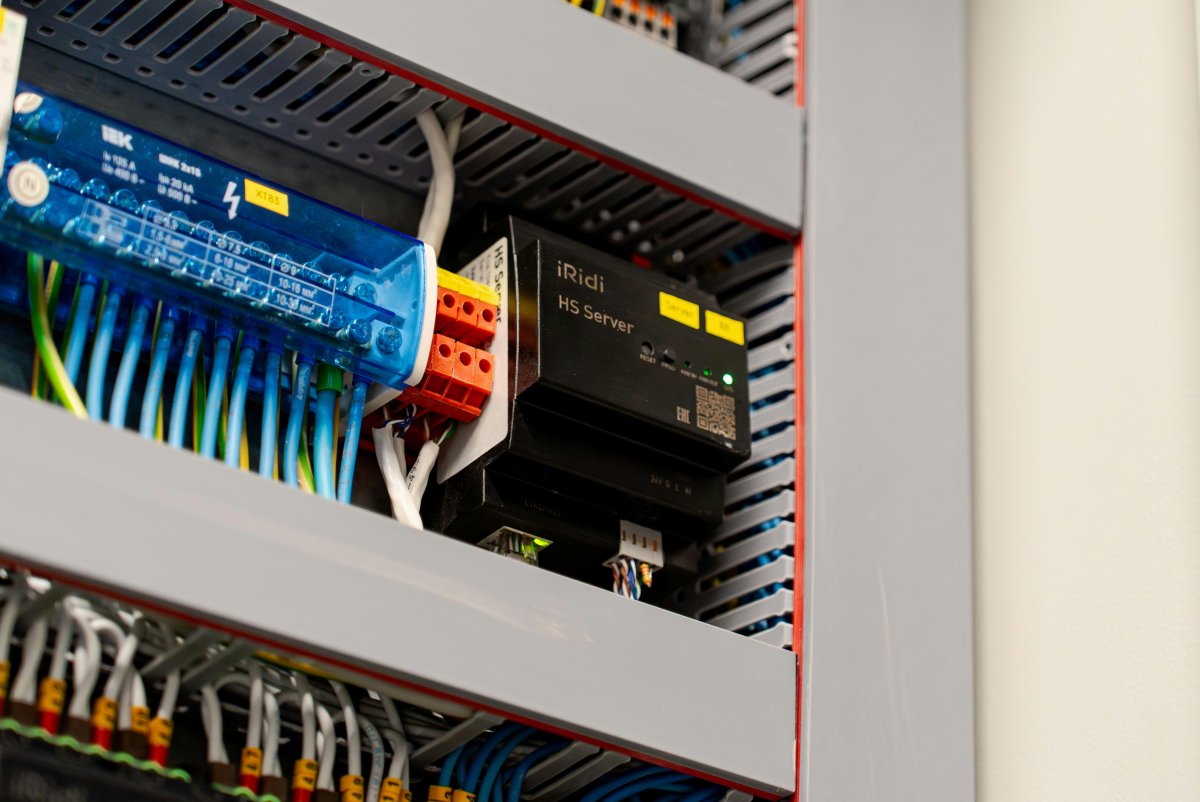
Below is a “full‑stack” playbook that covers everything you need to know to set up, run, and maintain a home‑hosted website (or a small collection of sites).
It’s written in a way that should be useful whether you’re a hobbyist, a student, or a small‑business owner.
1. Quick Decision Matrix
| Situation | Home Server ✔ | Cloud/VPS ✔ | Recommendation |
|---|---|---|---|
| Low traffic (personal blog, portfolio) | ✔ | ✔ | Home server gives you control + learning; VPS saves you the DIY hassle |
| Static site only | ✔ | ✔ | Use GitHub Pages / Netlify for zero maintenance |
| Dynamic site (CMS, database, API) | ✔ | ✔ | Home server = full control; VPS = better uptime, easier scaling |
| High availability / SLA required | ✘ | ✔ | Use a dedicated host or managed hosting |
| You’re a security expert & have a good network | ✔ | ✔ | Home server, but ensure you’re disciplined |
| You want to experiment / learn networking & DevOps | ✔ | ✘ | Go home server – it’s a sandbox |
Bottom line: If the site is a hobby, a personal project, or you simply want to learn, hosting from home is usually worth it (less money, more control). If you need professional uptime, support, or expect heavy traffic, a paid VPS or managed host is the safer route.
2. What You’ll Need
| Category | Item | Typical Cost | Why |
|---|---|---|---|
| Hardware | • PC / Mini‑PC / Raspberry Pi 4 (4 GB) or better • 1 TB SSD (NVMe if possible) • 8 GB RAM (or more for database) • Dual‑port Gigabit NIC (internal + external) |
$150–$400 (new) | Reliable compute, fast storage, low power |
| Network | • Reliable broadband connection (ISP) • Gigabit router with firewall/NAT • Optional: Wired PoE switch for devices |
$0–$80/mo (ISP) | Stable internet and local networking |
| Power | • UPS (1000VA) • Optional: Power‑saving mode |
$80–$150 | Protect against outages & data loss |
| Software | • Linux OS (Ubuntu Server 22.04 LTS, Debian, or Rocky Linux) • Web server (Nginx or Caddy) • Database (MySQL/MariaDB or PostgreSQL) • PHP/Node/Other runtimes as needed • Let’s Encrypt for SSL • Fail2Ban, UFW / iptables, optional AppArmor/SELinux |
Free | Open source stack, minimal cost |
| Domain & DNS | • Domain name ($10–$15/yr) • Dynamic DNS service (DuckDNS, No‑IP, Dynu – free tiers) • Cloudflare (free plan) |
$10–$15/yr + free | Public name & DDoS protection |
| Optional | • Docker / Kubernetes (if you want containerization) • Netdata / Grafana for monitoring • Backups: external HDD or cloud bucket |
$0–$20/mo | Easier deployment, observability, data safety |
Tip: If you’re just testing, a Raspberry Pi 4 is cheaper and runs on <30 W. If you expect database traffic or want low latency, use a more powerful mini‑PC.
3. Network & ISP Considerations
- Check ISP TOS – Some residential plans forbid hosting servers or block inbound traffic on ports 80/443.
- If blocked, ask for a static IP or a “business” plan that allows hosting.
- Dynamic vs Static IP – Most home connections have a dynamic IP.
- Use a Dynamic DNS (DDNS) provider and set up the client on your server (e.g.,
duckdns.sh). - Alternatively, use a VPN or Cloudflare Tunnel (Argo Tunnel) to expose services without port‑forwarding.
- Use a Dynamic DNS (DDNS) provider and set up the client on your server (e.g.,
- Port Forwarding – Forward external port 80 (HTTP) and 443 (HTTPS) to your server’s internal IP.
- In the router:
80 → 192.168.1.10:80,443 → 192.168.1.10:443.
- In the router:
- Router Firewall – Make sure your router’s firewall allows inbound traffic on those ports.
- Bandwidth – Home broadband is usually asymmetrical (down much larger than up).
- Monitor upload usage – excessive traffic may trigger throttling or extra charges.
- Redundancy – If uptime is critical, consider a 2nd ISP or a failover router. Not usually necessary for a hobby site.
4. Domain, DNS, and SSL
| Step | What to do | Tools |
|---|---|---|
| 1. Register domain | e.g., example.com |
Namecheap, Google Domains, Gandi |
| 2. Point domain to your IP | Create an A record pointing to your public IP. |
DNS provider |
| 3. Set up DDNS | Configure the DDNS client on your server to update the domain when IP changes. | DuckDNS, No‑IP, Cloudflare API |
| 4. Cloudflare (optional but recommended) | Use Cloudflare to proxy traffic (CNAME proxy, DNS only, or full proxy). | Cloudflare dashboard |
| 5. Obtain SSL | Let’s Encrypt automatically via Certbot or Caddy. | Certbot, Caddy, Traefik |
| 6. Enforce HTTPS | HSTS header, HTTP→HTTPS redirect | Nginx config or Caddyfile |
Why Cloudflare?
• DDoS protection & caching.
• Free SSL certificates.
• “Always On” TLS 1.3.
• DNS propagation is faster.
5. Setting Up the Server
Below is a typical Ubuntu 22.04 LTS + Nginx + PHP‑FPM stack. Replace PHP parts if you’re using Node, Python, or static content.
5.1 Install OS
- Download Ubuntu Server ISO.
- Create bootable USB.
- Install with default options (server role,
rootuser, secure password).
5.2 Basic Hardening
# Update
sudo apt update && sudo apt full-upgrade -y

# Install fail2ban
sudo apt install fail2ban -y

# Basic firewall
sudo ufw default deny incoming
sudo ufw default allow outgoing
sudo ufw allow OpenSSH
sudo ufw allow 80/tcp
sudo ufw allow 443/tcp
sudo ufw enable

# Harden SSH
sudo nano /etc/ssh/sshd_config
# Change: PermitRootLogin no, PasswordAuthentication no, Port 2222
sudo systemctl restart sshd

# Enable automatic updates
sudo apt install unattended-upgrades -y
sudo dpkg-reconfigure --priority=low unattended-upgrades
5.3 Install Nginx & PHP
sudo apt install nginx php-fpm php-mysql -y
sudo systemctl enable nginx
sudo systemctl enable php7.4-fpm
5.4 Configure Virtual Host
Create a file /etc/nginx/sites-available/example.com:
server {
    listen 80;
    server_name example.com www.example.com;

    root /var/www/example.com/html;
    index index.php index.html index.htm;

    location / {
        try_files $uri $uri/ =404;
    }

    location ~ \.php$ {
        include snippets/fastcgi-php.conf;
        fastcgi_pass unix:/run/php/php7.4-fpm.sock;
    }

    # SSL redirect (later)
    listen 443 ssl http2;
    ssl_certificate /etc/letsencrypt/live/example.com/fullchain.pem;
    ssl_certificate_key /etc/letsencrypt/live/example.com/privkey.pem;
    include snippets/ssl-params.conf;
}
Enable and test:
sudo ln -s /etc/nginx/sites-available/example.com /etc/nginx/sites-enabled/
sudo nginx -t
sudo systemctl reload nginx
Create the document root:
sudo mkdir -p /var/www/example.com/html
sudo chown -R $USER:$USER /var/www/example.com/html
Place an index.php to verify:
5.5 Let’s Encrypt
sudo apt install certbot python3-certbot-nginx -y
sudo certbot --nginx -d example.com -d www.example.com
Follow prompts (agree to terms, choose “redirect to HTTPS”). Certbot automatically renews and configures Nginx.
5.6 Optional: Caddy (One‑file, auto‑HTTPS)
If you want a single binary that does everything:
sudo curl -o /usr/local/bin/caddy https://caddyserver.com/download/linux/amd64?plugins=http.file_server,https.caddyfile
sudo chmod +x /usr/local/bin/caddy
Caddyfile:
example.com {
    root * /var/www/example.com/html
    file_server
}
Caddy automatically fetches Let’s Encrypt certs.
6. Managing Multiple Sites
If you plan to host several sites:
| Approach | Pros | Cons |
|---|---|---|
| Virtual hosts (Nginx) | Cheap, no extra software | You need to manage each vhost config |
| Docker Compose | Container isolation, easy updates | Adds complexity, more RAM usage |
| Traefik + Docker | Automatic routing, Let's Encrypt per container | Requires Docker, more overhead |
| Caddy | Auto‑HTTPS for all vhosts | Still one binary, but it can serve many domains |
Quick Docker‑Compose Example
version: "3.8"
services:
  nginx:
    image: nginx:latest
    volumes:
      - ./nginx/conf:/etc/nginx/conf.d
      - ./sites:/var/www/html
    ports:
      - "80:80"
      - "443:443"
  php:
    image: php:8.1-fpm
    volumes:
      - ./sites:/var/www/html
  db:
    image: mysql:8
    environment:
      MYSQL_ROOT_PASSWORD: example
7. Security Hardening Checklist
| Item | How to Do It |
|---|---|
| Keep OS & packages updated | apt update && apt upgrade -y + unattended-upgrades |
| SSH hardening | Change port, disable root, use key auth, firewall |
| Fail2Ban | Install, enable default filter |
| UFW/iptables | Block all except SSH, HTTP/HTTPS |
| HTTP Security Headers | Add Strict-Transport-Security, X-Content-Type-Options, X-Frame-Options, X-XSS-Protection |
| Let’s Encrypt auto‑renew | certbot renew --dry-run |
| DDoS Protection | Cloudflare, rate‑limit, fail2ban |
| AppArmor/SELinux | Enable if available |
| Disable unused services | systemctl disable / systemctl stop |
| Backup | rsync to external drive, or use borg + cloud bucket |
| Monitor | Netdata (http://netdata.cloud), or Prometheus+Grafana |
| Audit logs | logrotate, journalctl |
| Database security | Strong passwords, limit remote access, use bind-address=127.0.0.1 |
| HTTPS only | Force redirect, disable HTTP/1.1 if possible |
8. Power & Reliability
| Topic | Recommendation |
|---|---|
| UPS | 1000 VA, 600 Wh, 30 min runtime at 100 W load. |
| Power‑saving | Enable power-saving in BIOS, use systemd power management. |
| Backup | Off‑site snapshot (e.g., 1 TB external drive, cloud storage). |
| Network redundancy | Dual‑ISP or a failover router (not essential for hobby). |
| Automatic reboot | systemctl edit network to restart networking on failure. |
Cost Calculation (example):
Hardware: $300
Domain: $12/yr
ISP: $60/mo
Electricity: 50 W × 24 h × 30 days = 36 kWh → 36 kWh × $0.12/kWh ≈ $4.32/yr
Total 1st year ≈ $380
Compare to a cheap VPS ($5–$10/month = $60–$120/yr).
The home server is cheaper if you keep electricity low and traffic moderate.
9. Cost vs. Benefit Summary
| Factor | Home Server | Cloud/VPS |
|---|---|---|
| Initial Outlay | $200–$400 | $0 (free tier) or $5–$10/mo |
| Recurring Monthly | ISP + Electricity (~$60 + $0.10) | $5–$10 |
| Uptime | 95–99% (depends on ISP, power) | 99.9% SLA (usually) |
| Control | Full OS + network | Limited but manageable |
| Security Skill Needed | High | Moderate |
| Scalability | Limited (hardware) | Unlimited (upgrade) |
| Learning Opportunity | Very high | Moderate |
| Data Privacy | Full control | Dependent on the provider |
Verdict:
Hobby / Portfolio: Home server is great.
Small business / high traffic: Cloud/VPS is safer.
Learning / DevOps training: Home server is the best sandbox.
10. Quick “Start‑Up” Checklist (30‑Minute Run)
- Purchase hardware (mini‑PC + SSD).
- Install Ubuntu Server via USB.
- Set a static LAN IP on the server.
- Configure SSH (key, non‑root).
- Set up firewall (
ufw). - Install Nginx + PHP (
apt install nginx php-fpm). - Create a site directory and place a simple
index.html. - Configure virtual host (Nginx).
- Forward ports 80/443 on your router.
- Register a domain (or use a subdomain from a free provider).
- Set a DNS A record to your public IP.
- Install Certbot and obtain SSL.
- Add fail2ban & UFW hardening.
- Enable auto‑updates.
- Test from outside (use a phone on a cellular network).
- Set up backup (rsync to external drive).
- Set up monitoring (Netdata).
- Enjoy your home‑hosted site!
Final Takeaway
- Do it if you want full control, are comfortable with Linux networking, and have a stable ISP that permits hosting.
- Don’t do it if you need guaranteed uptime, high traffic, or can’t invest time into maintenance and security.
- Start small: host a simple static page, learn the stack, then expand to dynamic content.
- Invest in security from day one – it saves headaches later.
- Budget electricity – it’s the hidden cost of a home server.
Happy hosting! If you run into any specific roadblocks, feel free to ask for more detailed guidance on that step.
What's Your Reaction?
 Like
0
Like
0
 Dislike
0
Dislike
0
 Love
0
Love
0
 Funny
0
Funny
0
 Wow
0
Wow
0
 Sad
0
Sad
0
 Angry
0
Angry
0

At KREATOR, we are building a hub for original content. We believe that quality ideas deserve to be seen and that writers deserve to be paid for their effort. This is a space where you can showcase your research, share your hobbies, or post your professional skills. By publishing here, you are contributing to a community where ideas matter. Subscribe to our newsletter, read the latest articles, and remember: your voice is valuable. Let’s build something great together.











Comments (0)